AirDrop not working? Check these settings
Set receiving to Everyone for 10 Minutes, kill the hotspot, and keep both devices awake.
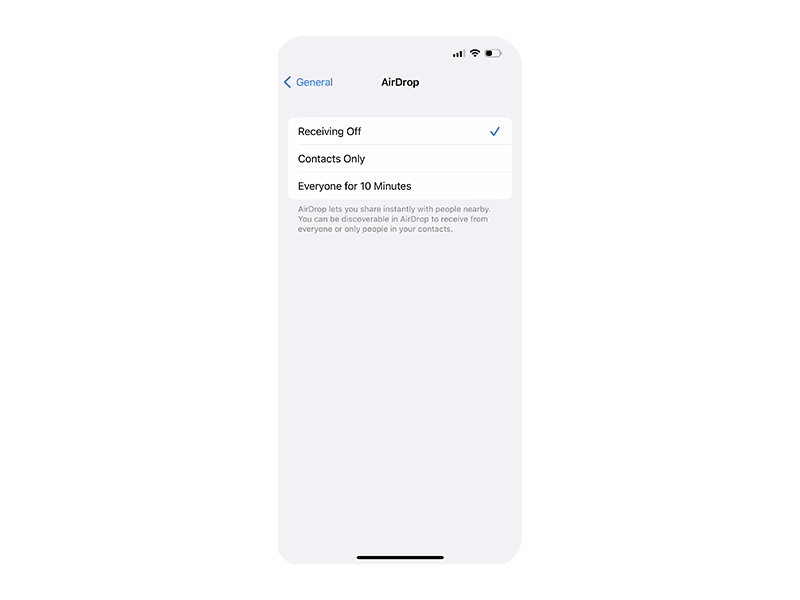
Set AirDrop to Everyone for 10 Minutes (Settings → General → AirDrop), turn off Personal Hotspot on both devices, make sure Wi-Fi and Bluetooth are on, and keep the receiving device unlocked.
Try these fixes in order
Turn on Wi-Fi and Bluetooth
Both radios must be active on sender and receiver — AirDrop uses Bluetooth for discovery and Wi-Fi for the transfer.
Settings → Wi-Fi → On; Settings → Bluetooth → On (both devices)Set AirDrop to Everyone
This is the #1 fix — it makes the device discoverable regardless of contacts matching.
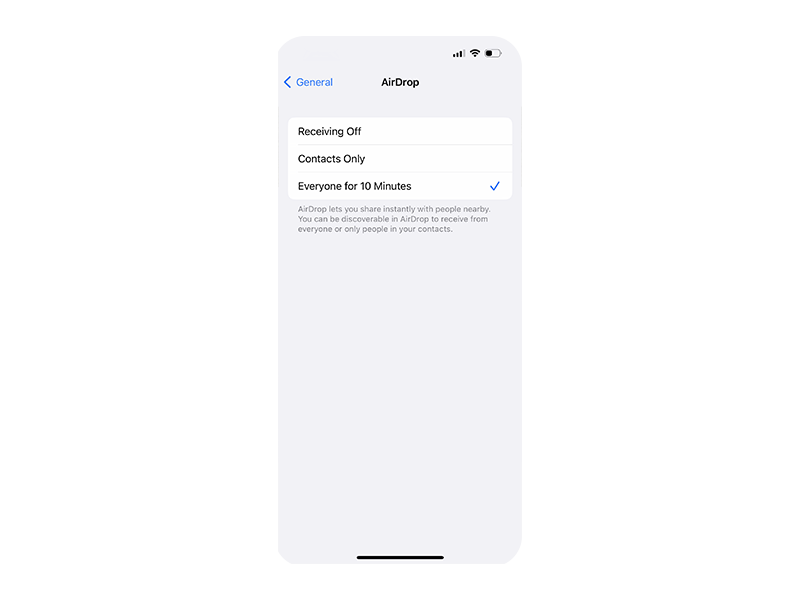
Settings → General → AirDrop → Everyone for 10 MinutesTurn off Personal Hotspot
Hotspot monopolizes the Wi-Fi radio and silently blocks AirDrop transfers.
Settings → Personal Hotspot → Allow Others to Join → OffRetry the transfer
Keep the devices within a few feet, unlocked, and retry the share.
Keep receiving device unlocked and nearby, then retry AirDropInterpret what you see
The other device never appears in the share sheet
What it suggests: Contacts Only fails when Apple Account contact sync lags or the sender is not in contacts — Everyone bypasses the lookup.
Next check: Switch to Everyone for 10 Minutes in Settings → General → AirDrop.
AirDrop broke right after enabling hotspot
What it suggests: Personal Hotspot takes over the Wi-Fi radio, which AirDrop needs.
Next check: Turn off Personal Hotspot on both devices.
It worked before, now nothing is found
What it suggests: A locked device will not advertise itself for AirDrop.
Next check: Unlock the receiving iPhone and keep it awake during the transfer.
Why this happens
- AirDrop receiving is set to Contacts Only and the sender is not recognized.
- Personal Hotspot is on, which disables AirDrop.
- Wi-Fi or Bluetooth is off, or the receiving device is locked.
Still not working?
Do not leave AirDrop on Everyone permanently — it returns to Contacts Only after 10 minutes by design, because an always-discoverable AirDrop lets strangers beam files at you. Use Everyone for the transfer, then let it revert.
Official sources
- YouTube: How to Fix AirDrop Not Working on iPhone or iPad ↗
- Screenshot: Argos iPhone 14 Pro AirDrop guide ↗
These steps are based on the linked documentation and general diagnostics. BugMedic has not independently tested every product and system configuration. Review commands before running them.