iPhone Bluetooth not connecting? Fix pairing
Forget the stale pairing, put the accessory in pairing mode, and re-pair fresh.
Go to Settings → Bluetooth, tap ⓘ next to the device, Forget This Device, then put the accessory in pairing mode and pair fresh. If nothing connects, Reset Network Settings.
Try these fixes in order
Toggle Bluetooth off and on
A quick toggle clears transient radio glitches.
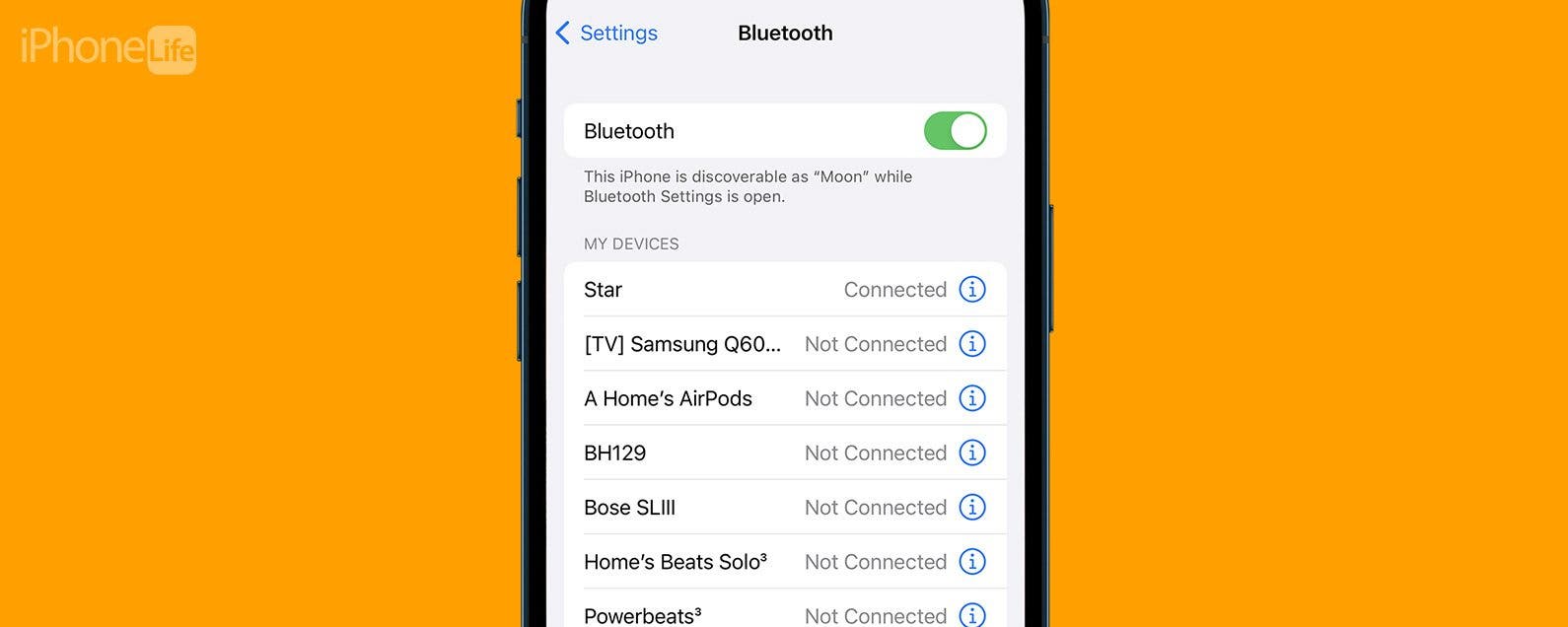
Settings → Bluetooth → Off, wait a few seconds, OnForget the device
This deletes the corrupted pairing record so the next pairing starts clean.
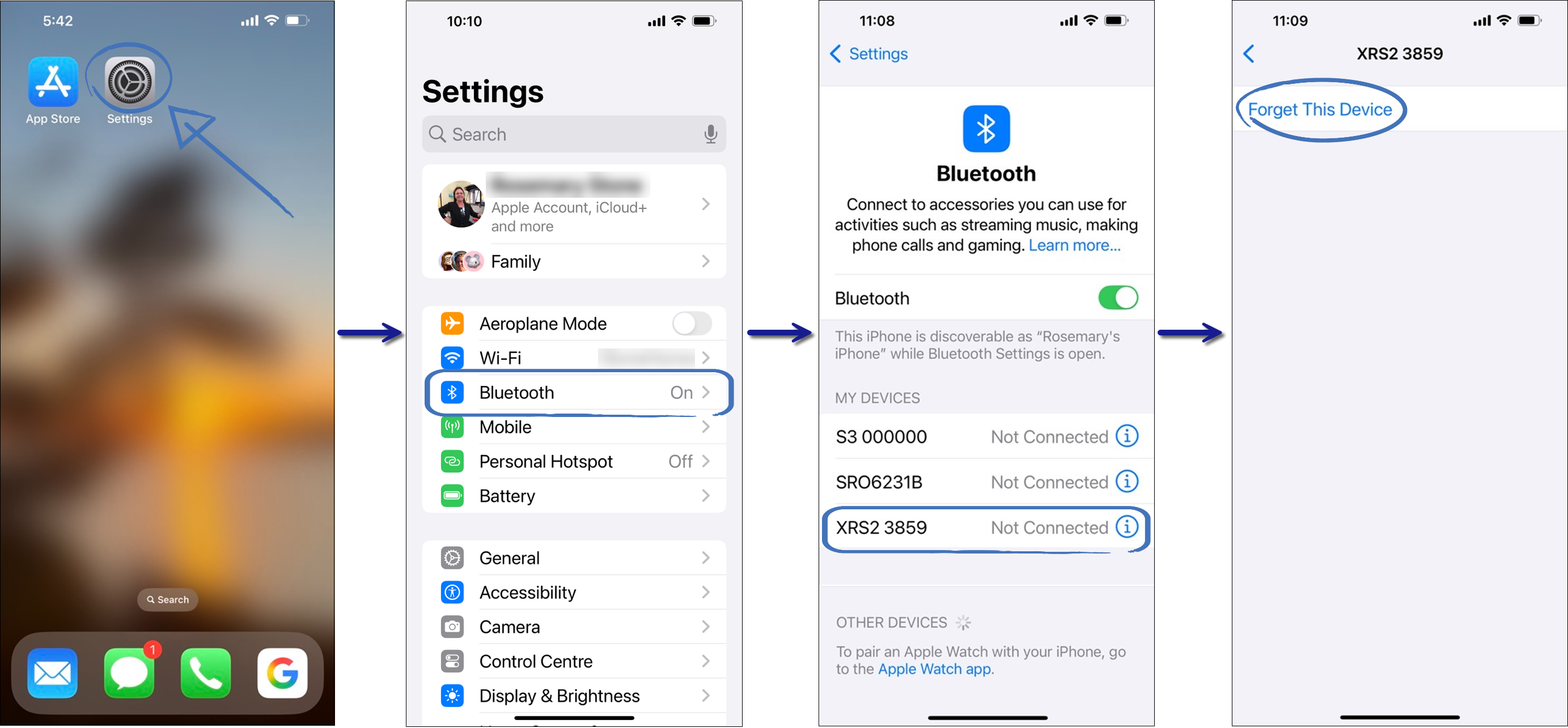
Settings → Bluetooth → ⓘ next to device → Forget This DeviceEnter pairing mode
Usually holding the power button until the LED blinks; check the accessory manual if unsure.
Put the accessory in pairing mode (blinking light)Re-pair fresh
Tap the device name when it appears and confirm the pairing request.
Settings → Bluetooth → tap the device name to pairInterpret what you see
Spinning wheel next to the device name
What it suggests: Old pairing data glitches and causes the endless spinning wheel.
Next check: Forget the device and pair again from scratch.
The device never appears in the Bluetooth list
What it suggests: Accessories must be in discoverable pairing mode (usually blinking light) to appear in the list.
Next check: Hold the accessory's power/pairing button until it blinks, then scan.
No Bluetooth device will connect at all
What it suggests: Bluetooth is part of the network stack; a reset clears corruption affecting all Bluetooth connections.
Next check: Reset Network Settings as the last resort.
Why this happens
- A stale pairing record conflicts with the accessory.
- The accessory is not in pairing mode or is still connected to another device.
- Corrupted Bluetooth stack needs a network settings reset.
Still not working?
Most Bluetooth accessories pair with only one device at a time — if your headphones auto-connect to your laptop or old phone, the iPhone cannot grab them. Disconnect the accessory from the other device (or turn that device's Bluetooth off) before pairing with the iPhone.
Official sources
- YouTube: How to fix Bluetooth issues on your iPhone in 4 easy steps ↗
- Screenshot: iPhone Life Bluetooth guide ↗
- Screenshot: Datamars support Bluetooth guide ↗
These steps are based on the linked documentation and general diagnostics. BugMedic has not independently tested every product and system configuration. Review commands before running them.