iPhone running slow? Speed it up with these settings
Reduce motion, calm background activity, free storage, and update.
Turn on Reduce Motion (Settings → Accessibility → Motion), disable Background App Refresh, free up storage to at least 10% free, and install the latest iOS update.
Try these fixes in order
Turn on Reduce Motion
This cuts interface animations, making app launches and transitions feel immediately snappier on older iPhones.
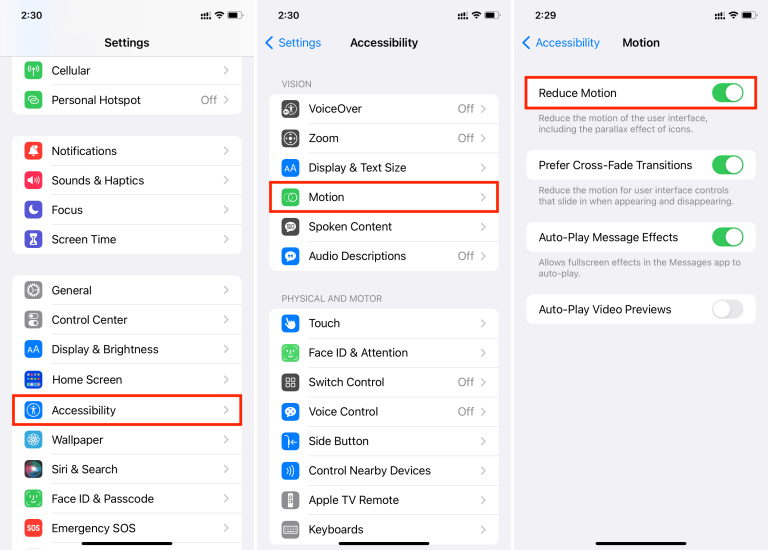
Settings → Accessibility → Motion → Reduce Motion → OnCalm background activity
Fewer background processes means more CPU and RAM for the app you are actually using.
Settings → General → Background App Refresh → OffFree up storage space
Delete or offload the biggest unused apps until at least a tenth of the storage is free.
Settings → General → iPhone StorageRestart and update iOS
A weekly restart clears temporary glitches; updates bring performance patches.
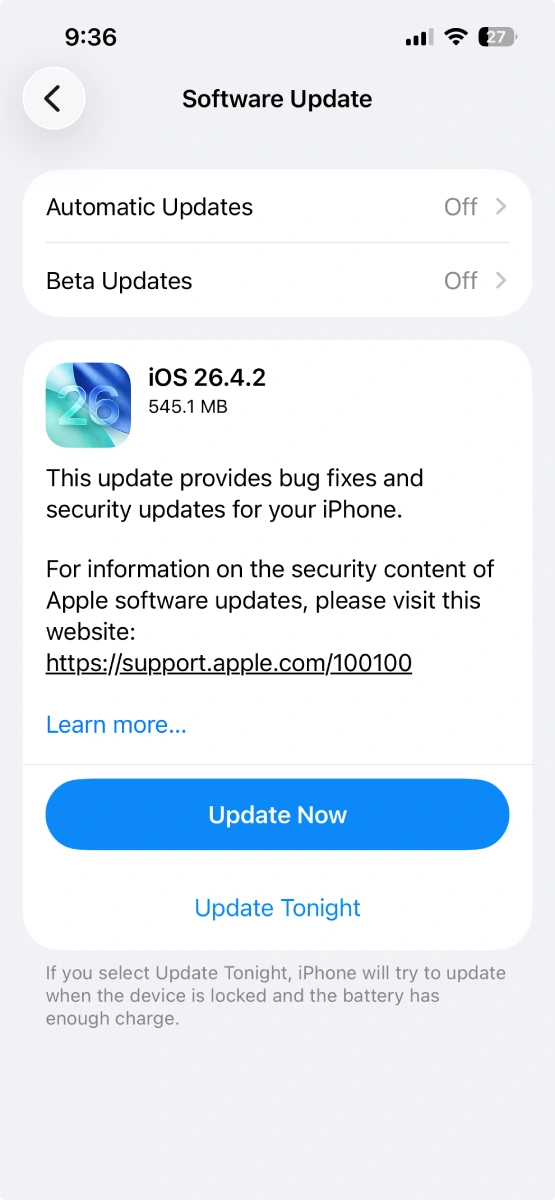
Settings → General → Software UpdateInterpret what you see
Everything feels laggy right after an iOS update
What it suggests: Animations and transitions cost GPU time on older chips; Reduce Motion makes the phone feel instantly faster.
Next check: Enable Reduce Motion in Settings → Accessibility → Motion.
Storage is over 90% full
What it suggests: iOS needs free space for caches and temporary files; a nearly full phone slows to a crawl.
Next check: Keep at least 10% of storage free via Settings → General → iPhone Storage.
You have been postponing updates
What it suggests: Updates routinely include performance fixes for the exact slowdown you are seeing.
Next check: Check Settings → General → Software Update.
Why this happens
- Background processes and animations load down older hardware after major iOS updates.
- Storage nearly full leaves iOS no room for caches and swap.
- Outdated iOS or apps carry unpatched performance bugs.
Still not working?
Do not install “phone cleaner” or “RAM booster” apps from the App Store: iOS gives third-party apps no access to system caches, so they cannot speed anything up, and many are subscription traps.
Official sources
- YouTube: iOS 26 Trick to Speed Up Older iPhones Instantly ↗
- YouTube: Make iPhone Faster in 10 Seconds — Turn ON Reduce Motion ↗
- Screenshot: Trucoteca iPhone animations guide ↗
- Screenshot: YTECHB iOS update coverage ↗
These steps are based on the linked documentation and general diagnostics. BugMedic has not independently tested every product and system configuration. Review commands before running them.