iPhone Storage Full? Free up space without deleting photos
Offload unused apps, optimize photos, and clear the hidden space hogs.
Go to Settings → General → iPhone Storage. Offload unused apps, turn on Optimize iPhone Storage for photos, and clear large message attachments and Safari website data.
Try these fixes in order
See what is using the space
The color-coded breakdown shows whether apps, photos, messages, or system data is the culprit.
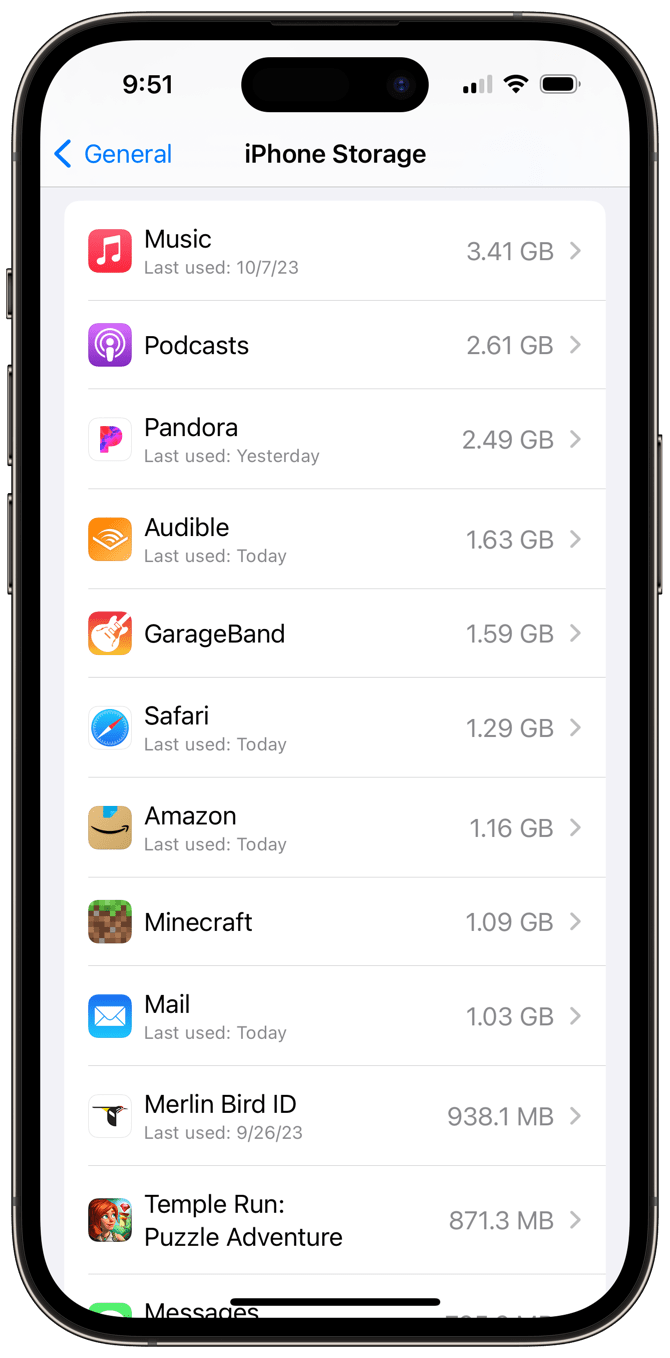
Settings → General → iPhone StorageOffload unused apps
Tap an unused app, then Offload App. This removes the app but keeps its documents and data, so reinstalling restores everything.
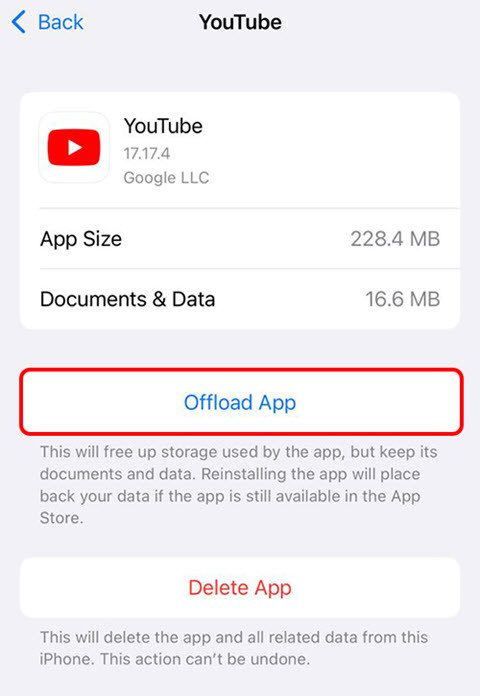
Settings → General → iPhone Storage → [app] → Offload AppOptimize photo storage
Full-resolution originals upload to iCloud while smaller versions stay on the phone. Make sure iCloud Photos is on first.
Settings → [your name] → iCloud → Photos → Optimize iPhone StorageClear attachments and Safari data
Review large attachments in Messages and clear Safari's website data — both grow silently for years.
Settings → Apps → Safari → Clear History and Website DataInterpret what you see
You have no idea what is using the space
What it suggests: The storage breakdown shows exactly which category is the culprit, so you fix the real problem instead of guessing.
Next check: Open Settings → General → iPhone Storage and read the breakdown.
Photos is the largest slice
What it suggests: Photos and videos are usually the biggest category; Optimize iPhone Storage keeps thumbnails locally and full originals in iCloud.
Next check: Enable iCloud Photos with Optimize iPhone Storage.
Unused apps take gigabytes
What it suggests: Apps you have not opened in months are pure waste; offloading reclaims their size while keeping their data.
Next check: Offload the biggest unused apps from the storage screen.
Why this happens
- Unused apps and their cached data pile up unnoticed.
- Full-resolution photos and videos fill the device instead of living in iCloud.
- Old message attachments and Safari website data grow silently.
Still not working?
Use Offload App, not Delete App, for apps you might want back: offloading removes the app but keeps its documents and data, while deleting wipes both. And do not buy more iCloud storage before checking the local culprits — most full iPhones are full of apps and attachments, not photos.
Official sources
- YouTube: How to Free Up iPhone Storage Without Deleting ↗
- Screenshot: MacReports iPhone storage guide ↗
- Screenshot: WikiGain iPhone storage guide ↗
These steps are based on the linked documentation and general diagnostics. BugMedic has not independently tested every product and system configuration. Review commands before running them.