iPhone Wi-Fi keeps disconnecting? Fix it
Forget the network, kill VPN interference, and reset network settings as a last resort.
Forget the network and rejoin it (Settings → Wi-Fi → ⓘ → Forget This Network). If it persists, disable Wi-Fi Assist and disconnect any VPN, then Reset Network Settings.
Try these fixes in order
Forget and rejoin the network
This clears the saved profile so iOS negotiates a fresh connection with new authentication and DHCP settings.
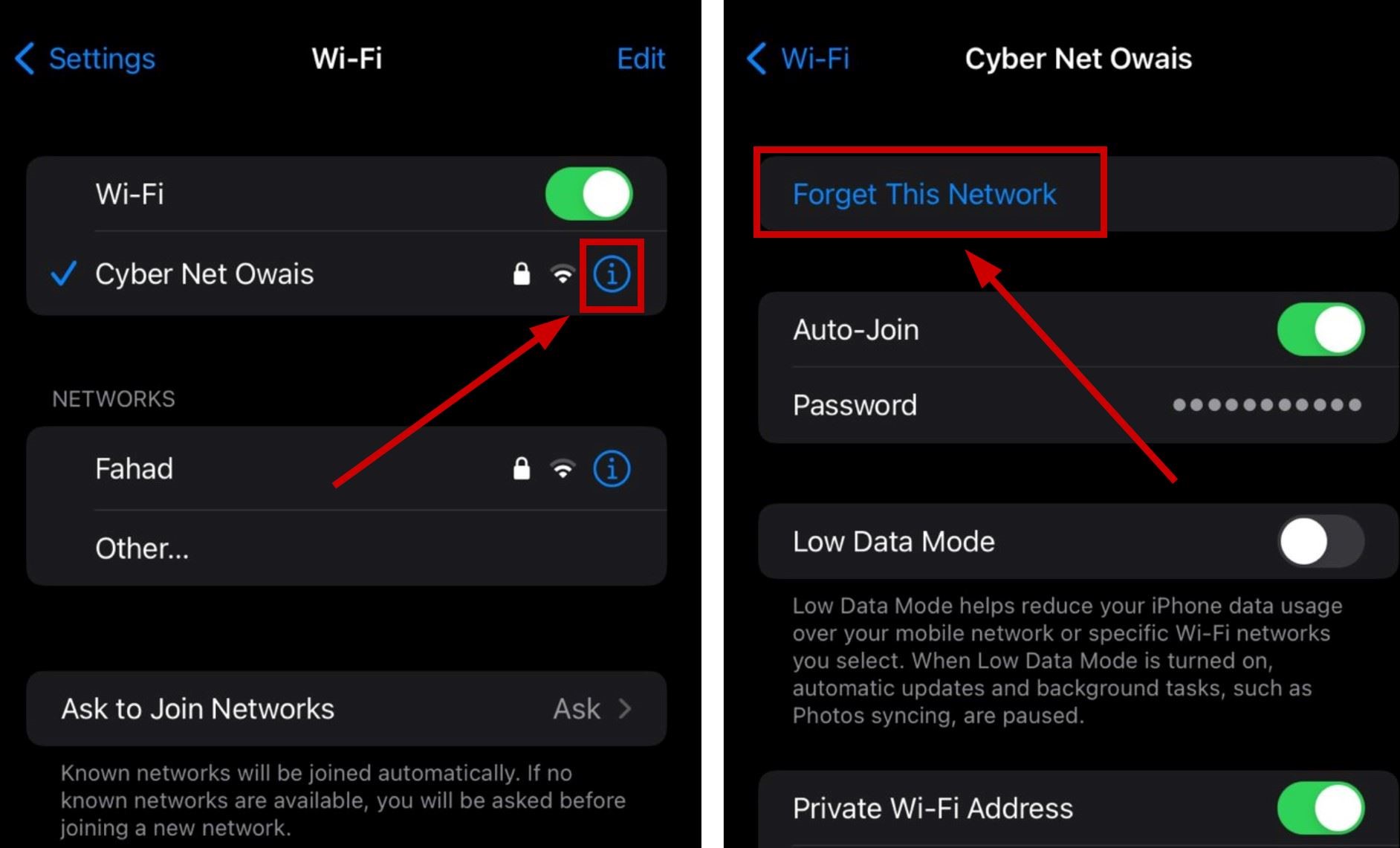
Settings → Wi-Fi → ⓘ next to network → Forget This NetworkDisable Wi-Fi Assist
This stops iOS from silently hopping between Wi-Fi and cellular when the signal is weak.
Settings → Cellular → Wi-Fi Assist → OffDisconnect any VPN
VPN routing conflicts are a common hidden cause of unstable Wi-Fi.
Settings → General → VPN & Device Management → disconnect VPNReset network settings
This clears corrupted network configuration. You will need to re-enter Wi-Fi passwords afterward.
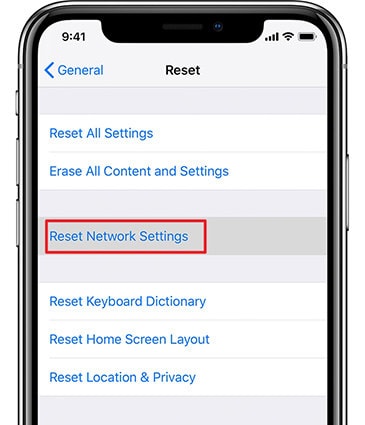
Settings → General → Transfer or Reset iPhone → Reset → Reset Network SettingsInterpret what you see
It started after a router change or password update
What it suggests: Saved network data from a router change or password update often causes repeated disconnect-reconnect cycles.
Next check: Forget the network and rejoin fresh in Settings → Wi-Fi.
Wi-Fi drops in rooms with weak signal
What it suggests: Wi-Fi Assist silently switches you to cellular when Wi-Fi is weak, which looks exactly like Wi-Fi dropping.
Next check: Turn off Wi-Fi Assist in Settings → Cellular.
A VPN app is installed and active
What it suggests: VPN apps route all traffic through their tunnel; a buggy one destabilizes the connection.
Next check: Disconnect VPN in Settings → General → VPN & Device Management.
Why this happens
- A corrupted saved network profile keeps failing authentication.
- VPN profiles or Wi-Fi Assist fight the Wi-Fi connection.
- Corrupted network settings need a clean slate.
Still not working?
Reset Network Settings only when the earlier steps fail: it erases saved Wi-Fi passwords, VPN configurations, and Bluetooth pairings. Your photos, apps, and data are untouched — but have your Wi-Fi password handy.
Official sources
- YouTube: iPhone WiFi Not Working (Fix) ↗
- YouTube: How To Fix iPhone Wi-Fi Not Connecting ↗
- Screenshot: Appuals Wi-Fi troubleshooting ↗
- Screenshot: Wondershare iOS troubleshooting ↗
These steps are based on the linked documentation and general diagnostics. BugMedic has not independently tested every product and system configuration. Review commands before running them.